PC — v24.0.0 · Windows & Mac · No Emulator

Summertime Saga
PC Download
Windows & Mac

Native PC builds for Windows and Mac. No emulator, no Android simulation — a proper desktop install that takes under 5 minutes from download to launch.

Summertime Saga on PC — At a Glance

Summertime Saga running on Windows PC desktop
App NameSummertime Saga
Versionv24.0.0
Windows FileEXE Installer
Mac FileZIP / App Bundle
DeveloperKompas Productions
Content Rating18+ / NSFW
Windows7 / 8 / 10 / 11 (64-bit)
MacmacOS 10.13+
RAM4 GB minimum
Storage~2 GB free required
Emulator NeededNo — native build
Internet RequiredNo — fully offline
Download for PC — v24.0.0

Does Summertime Saga Have a Native PC Version?

Yes — Summertime Saga has official native builds for both Windows and Mac. You do not need an Android emulator like BlueStacks or LDPlayer. The PC version installs directly as a standard desktop application and runs with significantly better performance than any emulated Android build.

The Windows version comes as an EXE installer. The Mac version is packaged as a ZIP containing a standard app bundle you drag to your Applications folder. Both take under 5 minutes to set up and run entirely offline once installed.

Unlike the iOS version, there are no certificate expiry issues and no 7-day refresh requirements. Install it once and it stays installed. Save data is stored locally in a standard folder and can be backed up easily.

✓ No Emulator ✓ Windows & Mac ✓ Offline Play ✓ No Expiry

PC System Requirements

Minimum and recommended specs for Windows and Mac.

Summertime Saga is a visual novel — it is not a demanding game by modern standards. Any computer purchased in the last decade will run it without issues. The requirements below are genuine minimums, not conservative marketing estimates.

Windows
OS: Windows 7, 8, 10, or 11 (64-bit) 32-bit Windows is not supported. Windows 10 or 11 recommended for best compatibility.
CPU: Any dual-core processor from 2010 or newer Intel Core i3 / AMD equivalent or better. The game is not CPU-intensive.
RAM: 4 GB minimum, 8 GB recommended The game uses roughly 1–1.5 GB of RAM during play. 4 GB is the floor; 8 GB keeps things smooth alongside a browser.
Storage: 2 GB free space The installed game occupies approximately 1.5–1.8 GB. Keep a buffer for save files and temporary data.
Mac
OS: macOS 10.13 High Sierra or higher Compatible with macOS Ventura, Monterey, Big Sur, Catalina, Mojave, and High Sierra. Both Intel and Apple Silicon (M1/M2/M3) Macs are supported.
CPU: Intel Core i3 or Apple M1 / M2 / M3 Runs natively on Apple Silicon via Rosetta 2 or as a native arm64 build depending on the release.
RAM: 4 GB minimum Standard for any Mac running macOS 10.13 or later. Any Mac made after 2012 meets this requirement.
Storage: 2 GB free space Same footprint as the Windows version. Check Apple Menu → About This Mac → Storage before downloading.

Native PC Build vs Android Emulator

You do not need BlueStacks or any emulator. Here is why the native build is always the better choice.

Recommended

Native PC Build

Runs directly on Windows or Mac as a proper desktop application. Full performance, keyboard and mouse controls, no overhead, no setup complexity. This is how the game is meant to be played on desktop.

  • PerformanceFull Native Speed
  • Setup TimeUnder 5 Minutes
  • Keyboard ControlsYes
  • OverheadNone
  • StabilityHigh
Download Native Build

Android Emulator

Running the Android APK through BlueStacks or LDPlayer works but adds unnecessary complexity — longer load times, higher RAM usage, emulation glitches, and extra setup steps. Not recommended when a native build exists.

  • PerformanceSlower (overhead)
  • Setup Time20–40 Minutes
  • RAM UsageHigher
  • StabilityLower
  • RecommendedNo
Android APK Instead

The native PC build was developed alongside the Android and desktop versions from the same source. It uses the same engine (Ren'Py) and contains identical content. Running the APK through an emulator instead means trading speed, stability, and keyboard support for no actual benefit — the native build is always the right choice on desktop.

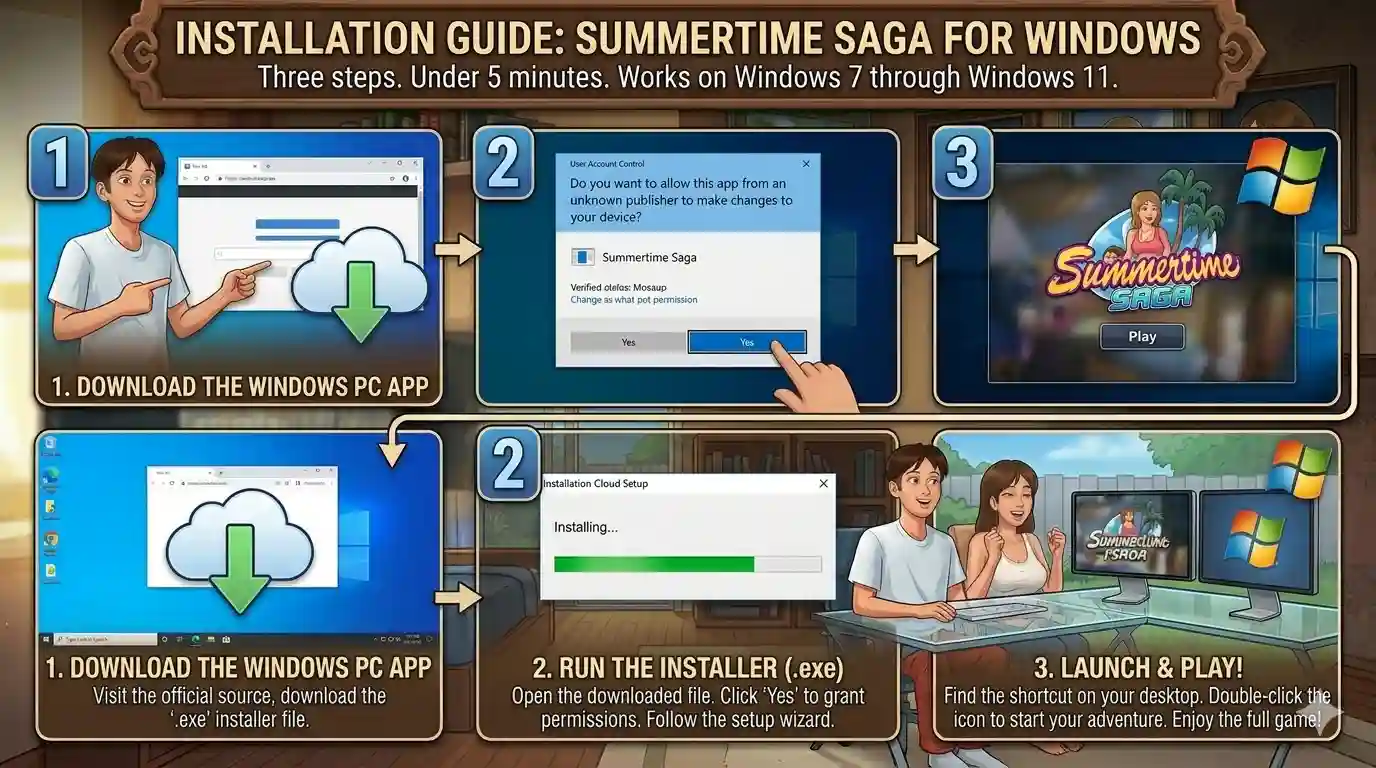
How to Install Summertime Saga on Windows

Three steps. Under 5 minutes. Works on Windows 7 through Windows 11.

Summertime Saga Windows installation steps

Download the Windows EXE

Go to the download page and select the Windows version. The file is an EXE installer approximately 1.5–1.8 GB in size. Download it directly to your Downloads folder or Desktop — anywhere easy to find. Use a stable connection; Wi-Fi is fine.

Handle the SmartScreen Warning

When you double-click the EXE, Windows SmartScreen may show a blue warning: "Windows protected your PC." This appears for any downloaded EXE that has not built up a reputation with Microsoft's servers — it is not a malware detection. Click "More info" then "Run anyway" to proceed with the install.

Run the Setup Wizard

Follow the on-screen prompts. Choose your install directory — the default location works fine. The installer extracts the game files and creates a desktop shortcut. Installation takes 1–3 minutes depending on your drive speed. No restart is required.

Antivirus flags: Some Windows antivirus tools flag the EXE as a false positive due to the adult content classification or because it is a newly downloaded executable. If your antivirus quarantines the file, add an exclusion for the game's install folder or temporarily disable real-time protection during installation. The file does not contain malware.

Save file location on Windows: Saves are stored at %APPDATA%\RenPy\SummertimeSaga. Paste this path into the Windows Explorer address bar to find it. Back up this folder before updating to a new version.

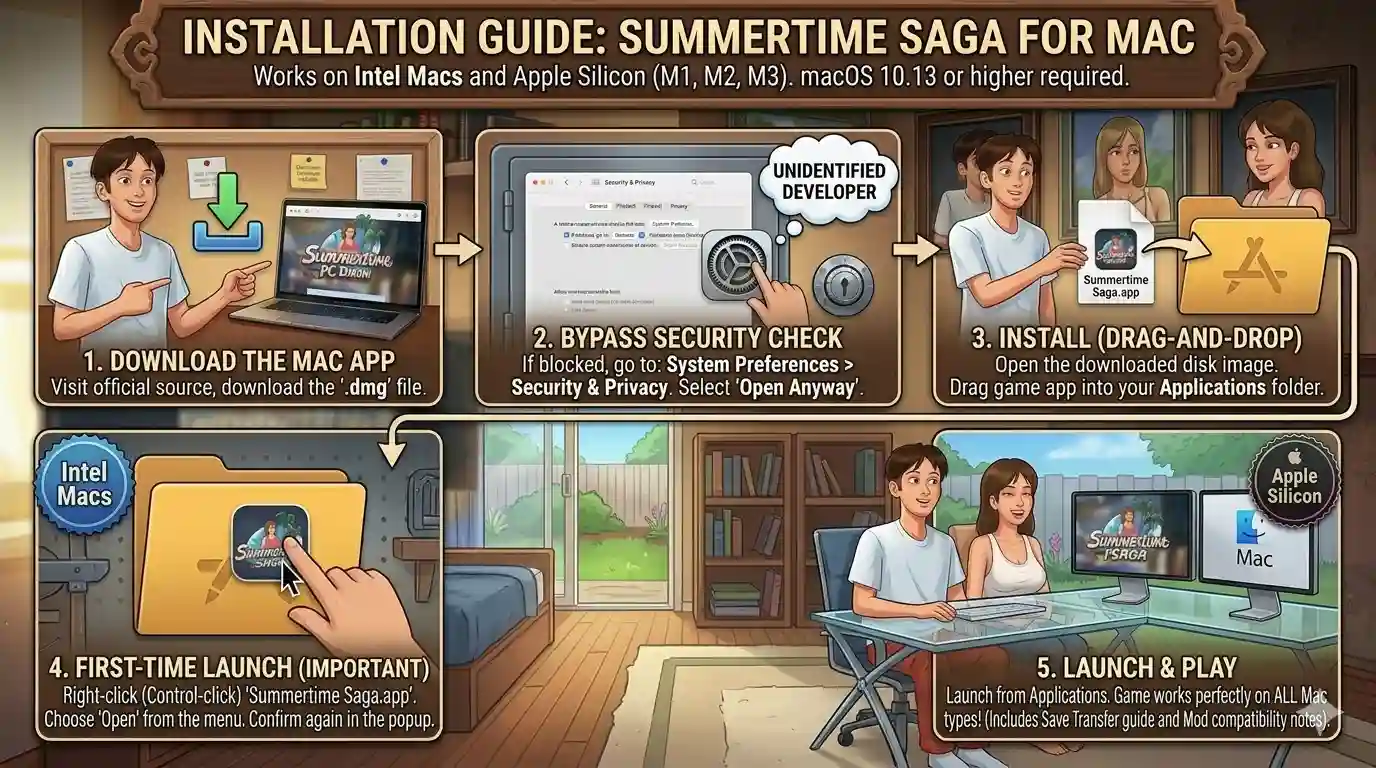
How to Install Summertime Saga on Mac

Works on Intel Macs and Apple Silicon (M1, M2, M3). macOS 10.13 or higher required.

Summertime Saga Mac installation guide macOS

Download the Mac ZIP

From the download page, select the Mac version. The file downloads as a ZIP archive. Safari will auto-extract it to your Downloads folder. If you are using Chrome or Firefox, right-click the ZIP and select "Open With → Archive Utility" to extract it manually.

Move to Applications

Inside the extracted folder you will find SummertimeSaga.app. Drag this file into your /Applications folder. This is the standard Mac app installation method — no installer wizard needed. You can delete the ZIP and extracted folder after moving the app.

Bypass Gatekeeper on First Launch

macOS Gatekeeper blocks apps from unidentified developers by default. When you first open the app, you will see "SummertimeSaga cannot be opened because it is from an unidentified developer." To bypass: go to System Settings → Privacy & Security, scroll down, and click "Open Anyway" next to the blocked app entry. You only need to do this once.

Apple Silicon (M1 / M2 / M3) users: If the app does not open after Gatekeeper approval, right-click the app in Finder and select "Open" from the context menu instead of double-clicking. This forces the Gatekeeper override prompt to appear. On some macOS versions the "Open Anyway" button in Settings only appears after attempting to open the file first.

Save file location on Mac: Saves are stored at ~/Library/RenPy/SummertimeSaga/. Open Finder, press Cmd + Shift + G, and paste that path to navigate there. Back up this folder before installing a new version.

Save File Location & Backup Guide

Your save data is stored separately from the game installation. This means you can uninstall and reinstall the game, or update to a new version, without losing progress — as long as you do not manually delete the save folder.

Before installing any update, copy your save folder to a safe location such as your Desktop or an external drive. After updating, paste the folder back to the same location if it was not preserved automatically. The game will detect and load your existing saves on next launch.

Windows %APPDATA%\RenPy\SummertimeSaga\
Mac ~/Library/RenPy/SummertimeSaga/

Common PC Installation Problems — Fixed

The issues that come up most often on Windows and Mac, and how to resolve each one.

Windows SmartScreen Blocks the EXE

Click "More info" on the SmartScreen dialog, then "Run anyway." SmartScreen flags newly downloaded EXE files that have not built up reputation data with Microsoft. This is not a malware detection — it is a reputation-based filter. The warning is expected and safe to bypass here.

Antivirus Quarantines the File on Windows

Add the game's install folder to your antivirus exclusion list before or after installation. In Windows Defender: go to Windows Security → Virus & Threat Protection → Manage Settings → Exclusions → Add an Exclusion → Folder, then select the game directory. Restore the quarantined file from your antivirus history if needed.

"Cannot Be Opened" on Mac — Gatekeeper

Go to System Settings → Privacy & Security and click "Open Anyway" next to the blocked entry. If you do not see the button, try opening the app first (it will fail), then check Settings — the button appears after a failed open attempt. Alternatively, right-click the app in Finder and select "Open" to force the override prompt.

Game Launches But Crashes Immediately

This is almost always a storage issue — the game needs roughly 2 GB free to operate. Check your available disk space and clear room if needed. If storage is fine, try running the EXE as Administrator on Windows (right-click → Run as administrator). On Mac, check that the app has permission to access your Documents and Downloads folder in System Settings → Privacy & Security → Files and Folders.

Black Screen or Display Issues on Launch

Try launching the game in windowed mode. On Windows, hold Shift while clicking the game shortcut to access launch options, or look for a config file in the game folder to set windowed mode. Update your GPU drivers if the black screen persists. On older integrated graphics, the game may default to a fallback renderer — this is normal and does not affect gameplay.

Save Files Missing After Update

Check the save folder paths listed in the Save Files section above. On Windows: %APPDATA%\RenPy\SummertimeSaga\. On Mac: ~/Library/RenPy/SummertimeSaga/. Saves are almost never deleted by an update — they are usually still in the folder. If the game is not detecting them, confirm the new version is installed in the same directory as the old one.

Frequently Asked Questions

Also Available on Android and iOS

Prefer to play on mobile? Android is the simplest install. iOS works without jailbreak via sideloading.

MOD APK

Android

Direct APK install with all content unlocked. Enable unknown sources, tap the file, done. No computer required. Compatible with Android 5.0 and above.

  • Versionv24.0.0 MOD
  • RequiresAndroid 5.0+
  • RootNot Required
Android APK Guide

iOS — iPhone & iPad

Sideload via AltStore or Sideloadly. No jailbreak needed. Works on iOS 13 and above. Certificate refreshes every 7 days — AltStore can automate this over Wi-Fi.

  • RequiresiOS 13+
  • JailbreakNot Required
  • MethodSideload
iOS Installation Guide

Download Summertime Saga for PC

Native Windows and Mac builds. No emulator. No certificate issues. Install once, play offline.

Download for PC Now
Telegram Updates