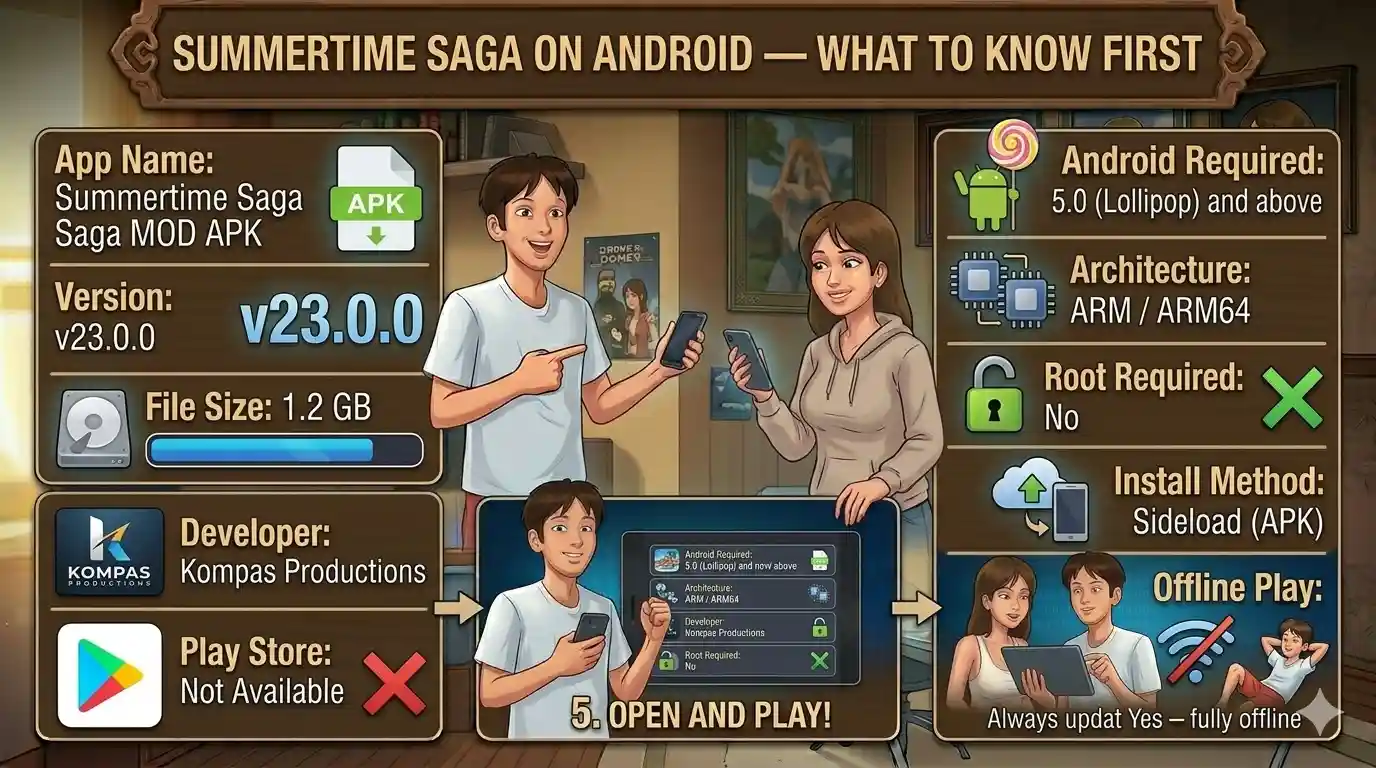
Everything you need to install, update, and troubleshoot Summertime Saga on any Android device. Step-by-step instructions, device-specific tips, and fixes for every common error.
Summertime Saga is not available on the Google Play Store. To install it you use a method called sideloading — installing an APK file directly onto your device without going through an app store. Android supports this natively; you just need to enable one permission in your settings first.
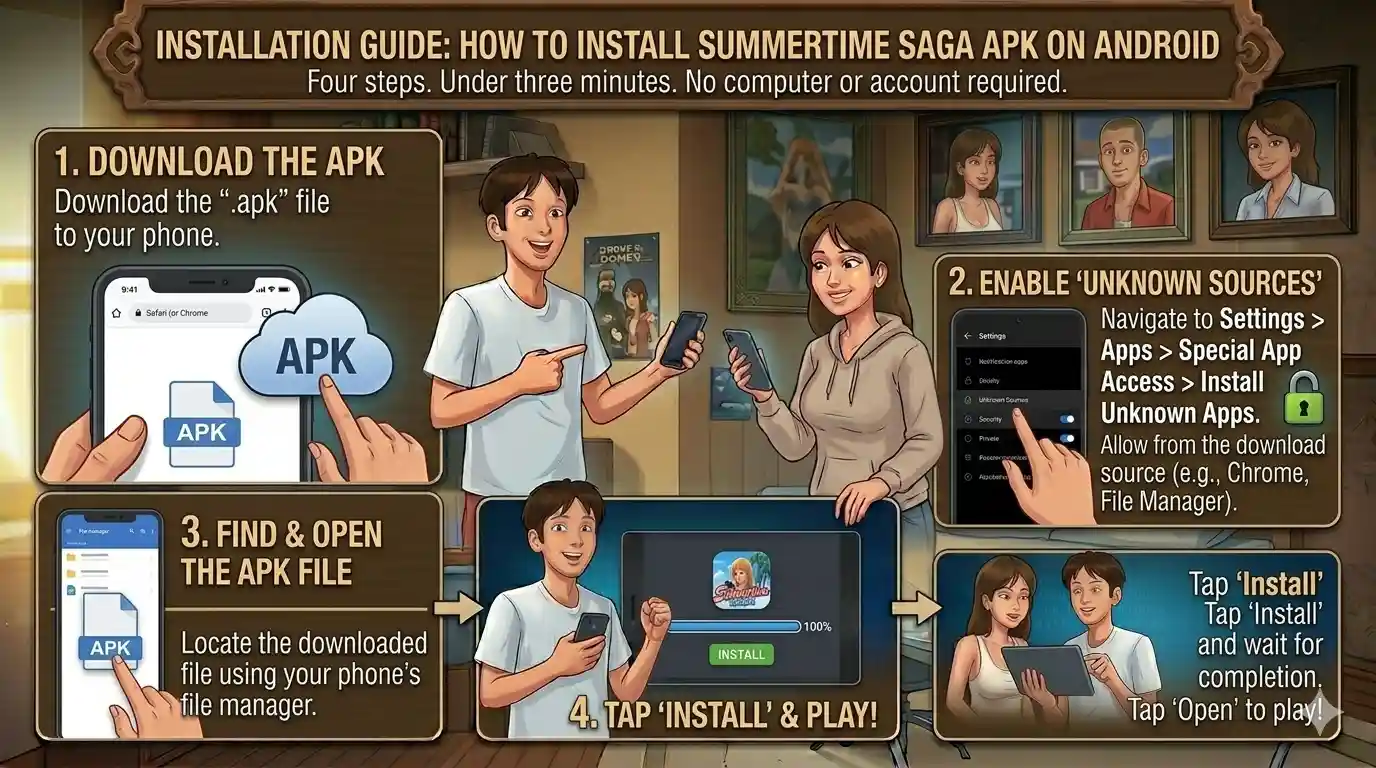
The process takes under three minutes. You enable Install from Unknown Sources, download the APK file to your device, tap it to install, and launch the game. No computer required, no account, no subscription.
The game runs entirely offline after installation. It is compatible with Android 5.0 through Android 14 across both ARM and ARM64 devices — covering virtually every Android phone and tablet currently in use.
This page covers the full installation process, device-specific instructions, how to update without losing saves, how to back up your data, and fixes for every common problem. If you just need the file, go to the
download page directly.
✓ No Root✓ No Computer✓ Android 5.0+✓ Offline Play
Compatibility
Android Compatibility & Device Requirements
What your device needs to run Summertime Saga without issues.
Summertime Saga runs on a wide range of Android hardware. The minimum OS version is Android 5.0 (Lollipop), released in 2014 — meaning the vast majority of devices currently in use are compatible. The game uses the ARM and ARM64 instruction sets, which covers essentially all Android phones and tablets made in the last decade.
The game is not available for x86 Android builds (used in some Chromebooks and rare PC-based tablets). If you are running Android on a non-standard device and the APK fails to install, an architecture mismatch is the most likely cause.
Android Version: 5.0 (Lollipop) or higherCompatible through Android 14. Android 8.0 and above recommended for the smoothest experience. Most Samsung, Xiaomi, OnePlus, Oppo, Vivo, and Google Pixel devices from 2016 onward qualify.
Processor: ARM or ARM64 (64-bit preferred)All mainstream Android chips qualify: Qualcomm Snapdragon, MediaTek Helio, MediaTek Dimensity, Samsung Exynos, and Kirin. ARM64 devices run the game noticeably smoother than 32-bit ARM.
RAM: 2 GB minimum, 3 GB or more recommendedThe game uses roughly 800 MB to 1.2 GB of RAM during play. On devices with 2 GB total RAM, close all background apps before launching to prevent crashes from memory pressure.
Storage: 2 GB free internal storageThe APK is 1.2 GB. After installation the game occupies 1.5 to 1.8 GB. You need at least 2 GB free to accommodate both the download file and the installed game simultaneously.
Screen: Any resolution — no minimumThe game scales to all Android screen sizes from compact phones to large tablets. The UI is optimized for portrait and landscape orientations. No minimum resolution requirement.
Installation Guide
How to Install Summertime Saga APK on Android
Four steps. Under three minutes. No computer or account required.
01
Enable Unknown Sources
Android blocks APK installs from outside the Play Store by default. To allow it, go to
Settings → Security (or Privacy on Android 8+) and enable
Install from Unknown Sources or Install Unknown Apps.
On Android 8 and above this is per-app — you enable it for whichever browser or file
manager you use to open the APK. See the
device-specific section below if you cannot find the setting.
02
Download the APK to Your Device
Go to the download page on your Android device and tap
Download APK. The file is 1.2 GB — use Wi-Fi, not mobile data,
to avoid carrier throttling or data charges. The file saves to your
Downloads folder by default. Do not rename the file after downloading.
03
Open and Install the APK
Open your file manager app (Files by Google, Mi File Manager, My Files on Samsung, etc.)
and navigate to the Downloads folder. Tap the APK file. Android will show
an installation prompt — tap Install. The installation takes 15 to
60 seconds depending on your device speed. Do not tap Open from the
browser — always install through the file manager for reliability.
04
Launch and Play
After installation completes, tap Open or find the Summertime Saga icon
on your home screen or app drawer. The first launch takes 20 to 40 seconds as the game
unpacks its assets to internal storage. Subsequent launches are faster. No login, no
setup screen, no internet connection required.
First launch is slow — this is normal. The game unpacks approximately
600 MB of assets on first run. Do not close the app during this process. If the screen
appears black or frozen for longer than 90 seconds, close the app and relaunch — the
unpacking will resume where it left off.
How to Enable Unknown Sources — By Android Version
The setting changed location in Android 8. Find yours below.
Most Devices
Android 8.0 and Above
Android Oreo and later moved this to a per-app permission. You grant it to the specific
app you are using to install the APK, not globally.
PathSettings → Apps
ThenSpecial App Access
ThenInstall Unknown Apps
Enable forYour file manager or browser
On Samsung (One UI): Settings → Biometrics and Security → Install Unknown Apps
On Xiaomi (MIUI): Settings → Privacy → Special App Access → Install Unknown Apps
On OnePlus (OxygenOS): Settings → Security → Install Unknown Apps
Android 5.0 — 7.1
Older Android versions use a single global toggle instead of per-app permissions.
Enable it once and all APKs can install from any source.
PathSettings → Security
ToggleUnknown Sources → ON
ConfirmOK on the warning dialog
ScopeApplies globally (all apps)
Some Android 5 and 6 devices label this under Settings → Privacy
instead of Security. If you do not see it under Security, check Privacy next.
Updating
How to Update Summertime Saga Without Losing Your Save
Safe update process that preserves all game progress.
01
Back Up Your Save First
Before installing any new version, copy your save folder to a safe location. On Android,
saves are stored at:
/Android/data/com.kompasproductions.summertimesaga/files/
Open your file manager, navigate to this path, and copy the entire folder to your
internal storage root or SD card. This is non-negotiable — always back up before
updating.
02
Check the Signature
If the new APK has the same package signature as your installed version, Android will
install it directly over the top as an update and saves are preserved automatically.
If the signatures differ (common when switching between MOD builds from different
sources), Android forces an uninstall first. This is the only scenario where saves can
be lost without a backup.
03
Install the New APK
Download the new version from the download page and install it
using the same steps as the original install. If Android prompts you to uninstall first,
do so — your save backup from step one covers you. After uninstalling, install the
new APK, then restore your save folder to the same path.
04
Restore Your Save if Needed
After installing the new version, launch the game once and then close it — this
creates the data folder structure. Copy your backed-up save files back to
/Android/data/com.kompasproductions.summertimesaga/files/
overwriting what is there. Launch the game again and your saves will appear on the
load screen.
Check the changelog before updating.
Major version updates occasionally change the save file format, which can cause
older saves to display incorrectly on new versions. The changelog notes when this
happens and what to expect.
Save Files
Save File Location & Backup on Android
Save files are stored in the app's data directory, separate from the APK itself.
Uninstalling the game removes this folder unless you back it up manually first.
Updating via direct APK install (same signature) preserves saves automatically.
On Android 11 and above, the /Android/data/ folder is restricted.
You cannot access it using standard file managers without either granting special
permissions or using a workaround. Use
Files by Google with internal storage access granted,
or a third-party file manager such as X-Plore or
MiXplorer which can access restricted folders on most devices.
Every installation and runtime problem with a confirmed fix.
“App Not Installed” Error
This is the most common error. Causes and fixes: (1) Unknown Sources not enabled —
go back to the settings section above and enable it for
your file manager. (2) Conflicting existing install — if you have a different build
of the game already installed, uninstall it before installing the new APK. (3)
Corrupted download — delete the APK and re-download it from scratch.
(4) Insufficient storage — free up at least 2 GB before attempting install.
Antivirus or Play Protect Warning
Google Play Protect and most Android antivirus tools flag sideloaded APKs regardless
of content because they come from outside the Play Store. This is a policy-based warning,
not malware detection. When Play Protect prompts you during install, tap
Install Anyway. To disable Play Protect scans permanently: open the
Play Store → tap your profile icon → Play Protect → Settings → turn
off Scan apps with Play Protect.
Game Crashes on Launch
First: confirm you have at least 2 GB of free storage. The game needs room to unpack
assets on first launch. Second: close all background apps before opening Summertime
Saga — on 2 GB RAM devices this is essential. Third: if the crash happens after
a black screen that lasts more than 90 seconds, the asset unpack may have failed —
uninstall, clear the data folder, and reinstall fresh.
Black Screen or Frozen First Launch
The black screen on first launch is the asset extraction process and can last up to
90 seconds on slower devices — this is expected behavior, not a crash. If it
exceeds 90 seconds with no progress: force-close the app, re-open it, and let it
continue. If it fails repeatedly, check storage space. If storage is fine and the
problem persists, try enabling Developer Options → Force GPU Rendering.
Save Files Not Found After Update
If your saves disappeared after an update it usually means the APK required an
uninstall-reinstall which wiped the data folder. If you had a backup, restore it to
/Android/data/com.kompasproductions.summertimesaga/files/.
If no backup exists, the saves are unrecoverable — this is why the backup step
in the update guide above is mandatory before every update.
Download Interrupted or File Corrupted
A 1.2 GB download over an unstable connection can produce a corrupted file that
installs incorrectly or not at all. Symptoms include: APK size appears smaller than
1.2 GB in your file manager, “Package is invalid” error on install, or
game crashes immediately after launching. Solution: delete the partial file and
re-download on a stable Wi-Fi connection. Do not resume interrupted downloads for
APK files — always start fresh.
FAQ
Frequently Asked Questions
No. Root is not required. The game installs and runs on any standard Android device without root access. The only requirement is enabling Install from Unknown Sources in your settings, which is a normal Android feature available to all users.
The APK does not contain malware, adware, or hidden trackers. Antivirus warnings you see are false positives triggered by the sideloading method, not the file content. The game runs entirely offline with no outbound network connections during gameplay. If you want to verify the file yourself, check the APK size matches 1.2 GB — corrupted or tampered files typically differ in size.
Google Play Store prohibits apps with adult or NSFW content. Summertime Saga contains 18+ material that violates Play Store content policies, so it cannot be distributed through Google's platform. The game has always been distributed directly as an APK download from the developer's official channels and fan sites like this one.
The APK file is 1.2 GB. After installation and first-launch asset extraction, the game occupies approximately 1.5 to 1.8 GB of internal storage. Save files add a negligible amount (a few MB). You need at least 2 GB free before starting the download to accommodate both the APK and the installed game simultaneously.
This depends on your device and Android version. Some Android devices allow moving app data to an SD card via Settings → Apps → Summertime Saga → Storage → Change. If this option is available on your device it will appear there. Not all devices support it — Samsung and stock Android generally do, while some custom ROMs restrict it. Note that moving to an SD card can cause slower load times.
Yes, fully. Once installed, Summertime Saga requires no internet connection at any point during gameplay. There is no account system, no DRM check, no cloud save, and no online feature of any kind. You only need internet to download the APK file initially. After that the game works with your device in airplane mode.
Yes. Samsung (One UI), Xiaomi (MIUI/HyperOS), OnePlus (OxygenOS), Oppo (ColorOS), Vivo (FuntouchOS), Realme (Realme UI), and Google Pixel (stock Android) are all confirmed compatible. The location of the Unknown Sources setting varies between manufacturer skins — refer to the device-specific section above for exact paths. The gameplay experience is identical across all manufacturers.
Check the changelog page — it is updated within hours of each new release. The version number shown on the Summertime Saga MOD APK homepage also reflects the current latest build. If the version there matches what you have installed, you are already on the latest release.
Download Hub
Looking for the MOD APK Download?
This page covers the Android installation guide in full detail. For the actual APK
file, version information, MOD features, and platform comparison, visit the main
download hub.